How to approve/ reject leaves by Supervisor?
Supervisor leave approval is the first level leave approval. The employee must be assigned to the supervisor to request for leave approval.
Leave approval from Mobile Application by Supervisor
Step1: Open Sanarp Mobile application
Step2: Navigate to Menu – Leaves
Step3: In the leaves page, click on the leave calendar icon which is on the topmost 2nd right of the page.
Step4: Once in the leave approve page, Under the Supervisor tab, open the specific leave to approve, put a comment and click on the Approve button.
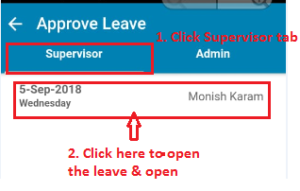
Step5: Once leave is approved, then it will go for approval to the Admin. Refer Image1
To reject the leave,
Step6: Open the specific leave to reject, put a comment and click on the Reject button.
Once approved/ rejected, notification will be sent to the employee for leave status.
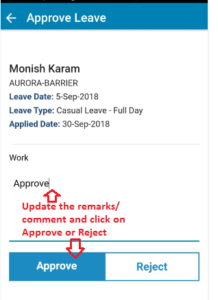 Image1
How to Approve leave in web application?
Step1: Login to www.sanarp.com
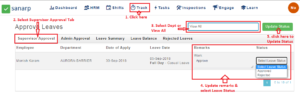
Step2: Navigate to Track – Supervisor Approval tab
Step3: All the leaves pending to be approved will be listed here.
Step4: Put Remarks & Select Leave Status as “Approved” for the leaves you want to approve.
To reject
Step5: Put Remarks & Select Leave Status as “Reject” for the leaves you want to reject.
Step6: Click on “Update Status” to approve/ reject the leaves.
Once the leave is approved by the Supervisor, it will go for Leave Approval by HR (Admin). If rejected, the leave request won’t be sent to the Admin/ HR for approval.