
How to Import Leaves?
Leaves has to be imported for the employee first to be able to assign and apply. Follow the steps to import the leaves-
Step1: Login into www.sanarp.com
Step2: Navigate to Tracks – Leaves
Step3: Click on the “Import” button (the cloud icon) just below the create employee button. Refer Image1
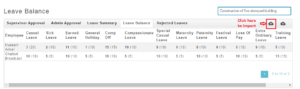 Image1
Step4: It will navigate to the employee upload page. Click on “Download Template” and on clicking a template – “leavetemplate.csv” will be downloaded. Refer Image2
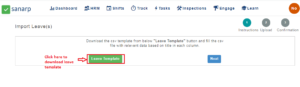 Image2
Step5: Open the template, update the details and save it. Refer Image3
a. Incurred – No of leaves assigned for an employee
b. Taken – No of leaves taken for an employee
c. Balance – No of leaves remaining for an employee
Note: Fill the leaves types only those applicable. For those leaves not applicable, Put zero for those and save it.
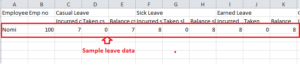 Image3
Step6: Browse and import the document and on successful import, leaves will be assigned to the employees. Refer Image4
 Image4
** During import, if there are any duplicate Employee IDs found, Notification message “Following employees already have leave records in system. Hence cannot import leave data for these employees” will be displayed Refer Image5. Ensure all the employees are unique and re-import again.
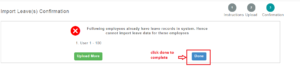 Image5
