
How do we give Supervisor accessibility permission in Sanarp?
Based on the employee/ staff role, employee accessibility to Sanarp web application will be restricted. To grant the employee (with supervisor role) access to all Sanarp application, a one time access mapping needs to do. This access mapping will be only for the employee with Supervisor role.
FYI – Admin role users will have super user access and will be able to access all the modules & features. An admin user will only have permission to assign/give access to selected modules to their employee.
Kindly follow the below steps to map the employee access –
Step1: Login to https://www.sanarp.com/
Step2: Click on the Profile Icon on the extreme right upper corner (Refer image 1 – Access Mapping) and select the “Access Mapping” from the drop down.
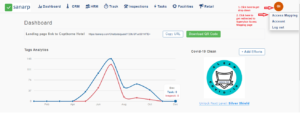 Fig: Image 1 – Access Mapping
Step3: Once selected, the Access Mapping page will open.
Step4: For the particular feature/ label that you wish to allow access for the employee, search the Employee Name in the text box field “Search by Employee Name” and add it.
E.g.
Usecase1: Let’s say you want your employee to have access to Tasks, add the employee name under Tasks – Orders.
Usecase2: Let’s say you want your employee to have access to Dashboard feature, search and add employee name under Dashboard Label.
Step 5: Click on “Assign Employee” button to successfully update the access.
Step6: You can also remove the employee’s access by clicking on the “x” button besides their name. (Refer Image 2 – Add/ remove Access Mapping)
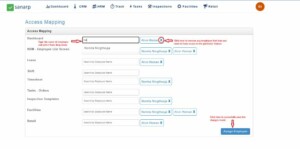 Fig: Image 2 – Add/ remove Access Mapping
Step7: Once the required changes have been made, click on the “Assign Employee” to successfully save the changes. (Refer image above)
Step8: Now, Login into the Employee’s account whose access has been mapped. For those features/ modules, the employee name is mapped, he/ she could access those features.
Incase, the employee (with supervisor role couldn’t access a particular (Refer Image3 – Could not access the application), then please contact their HR or write to Sanarp support email – [email protected]
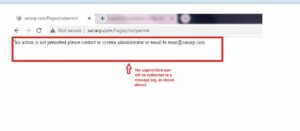 Fig: Image3 – Could not access the application
