Phase 2: Sanarp Go-Live, we will test the guest home page link after we add the data. To do, follow the below steps-
Step1: To test/ check the hotel unique link, copy and open this link or scan the QR code after downloading it.

On opening the guest link, you will see the below page:
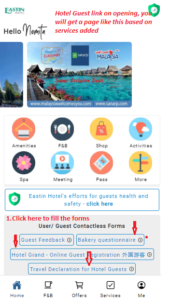
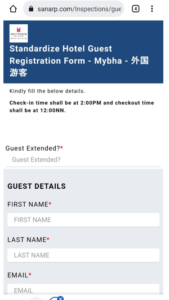
Step2: To fill the guest forms – Registration Card or Travel Declaration, click on the form, fill the below details and submit it
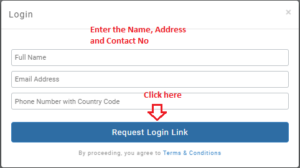
Step3: To buy any F&B, catering, retail products or services order, one time login is required by the guests. The below details are needed to login at the time of order –
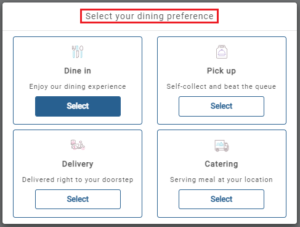
Step4: To order F&B, select the dinning preferences.
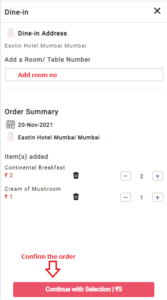
A. Let’s say, you selected Dine-in/ Delivery, Select the menu and confirm the order
Dine-In Image1
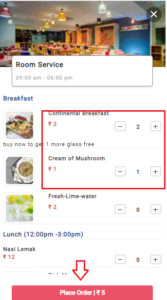
Dine-In Image2
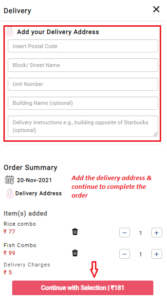
If Delivery dining preference is selected, then fill the delivery details to fulfill the order
B. Let’s say, you selected Catering as dinning preference. Then select the menu, provide the delivery details and confirm the order.
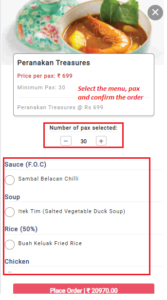
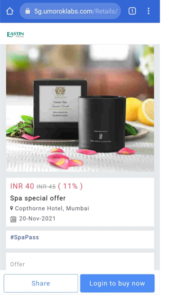
Step5: To buy retail products, click on the “Offers” menu at the bottom of the page. Once in the offer page, select the product and click buy to order the product.
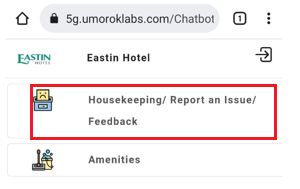
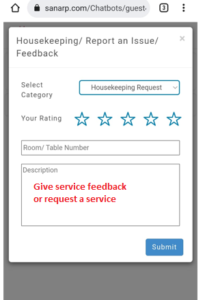
Step6: To give Housekeeping request/ Report an Issue/ Feedback, click on the services and select the Housekeeping/ Report an Issue/ Feedback button.
On selecting the above section, Housekeeping request can be done.
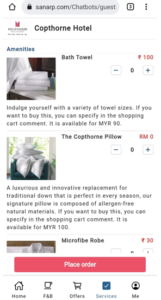
Step7: To request Amenities, click on the services and select the amenities button. Then, add the amenities to buy and proceed to confirm the order
Step8: Demo/ hands-on training for using the Sanarp.
