This guide outlines the process for creating Vendor Codes:
Part A. User Prerequisites (Hotel Staff): How to access Sanarp Hotel Account
1. Users must have access to their respective hotel Sanarp profiles, which should be created in advance.
Steps: How to login Sanarp and access Vendor Code Creation Form
1. Access the link: https://5gpromise.gingerhotels.com/
2. Click on “Login” and enter your Email-ID (username) and password set up in Sanarp.
3. Navigate to Inspections -> Vendor in the menu.
4. Right-click on the “Vendor Code Creation Form” under Templates to open the form and fill it. Follow Part B to fill the form.
Note: Incase, you forget your password, reset your Sanarp password – https://help.sanarp.com/article/account-password-reset
Part B: How to fill the form
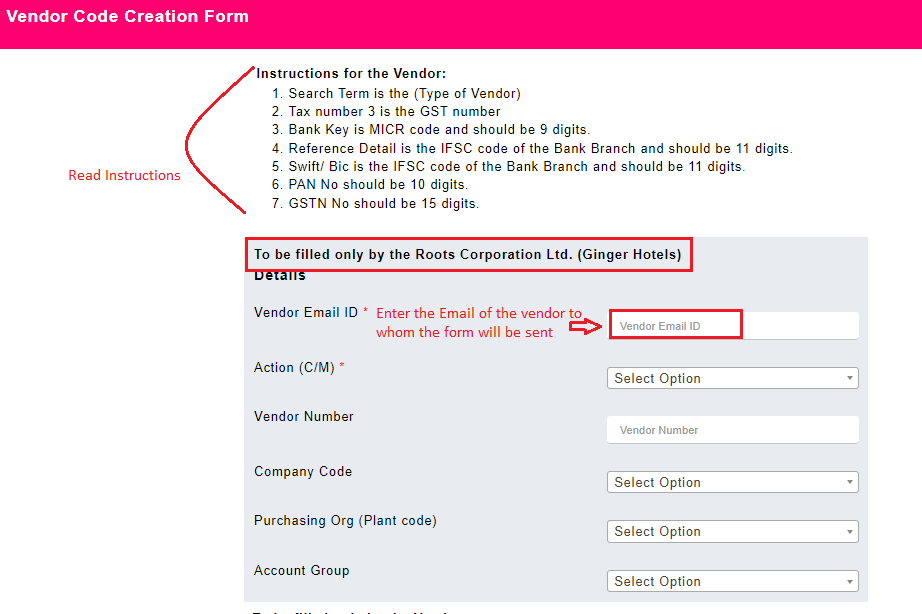
Note: Carefully review the “Instructions for the Vendor.” The form consists of two parts:
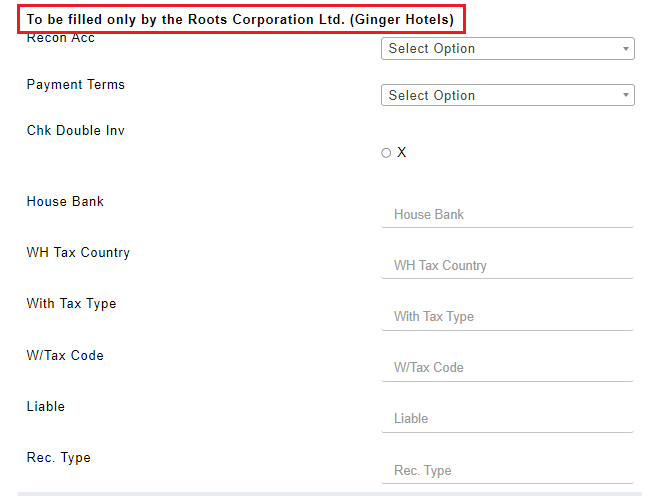
Part 1: Hotel staff fills the section marked “To be filled only by the Roots Corporation Ltd. (Ginger Hotels)” and SKIPS the section “To be filled only by the Vendor.”
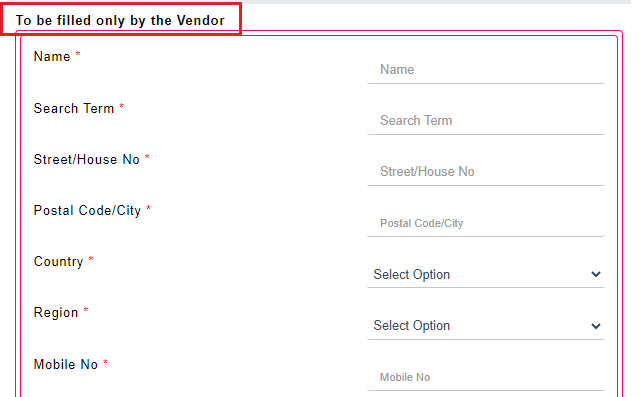
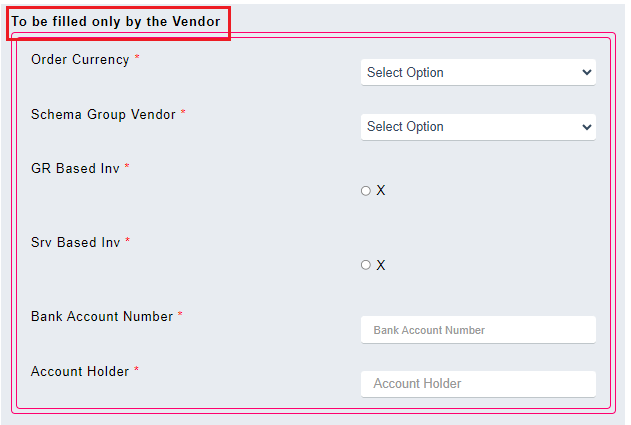
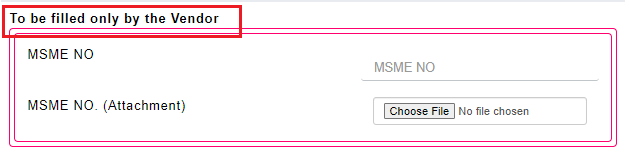
Part 2: Vendors fill the section “To be filled only by the Vendor.”
Please note in the below steps given – Step 1 and Step 3 involve user activities, while Step 2 requires input from the vendor.
Step 1: Begin Form Submission
- The user completes the section designated “To be filled only by the Roots Corporation Ltd. (Ginger Hotels).”
- The user provides the vendor’s email ID to send the form.
- After completion, the user submits the form.
 Step 2: Vendor Form Submission
- The vendor receives an email to complete the form from the hotel. Email sub: “Vendor: Fill the Vendor Code Creation Form to Register with Roots Corporation Ltd. (Ginger Hotels)”
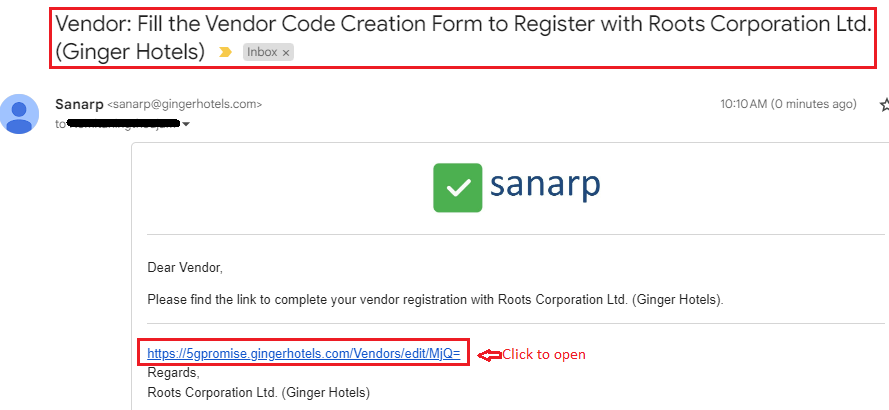
- The vendor opens the form link from the email.
- The vendor fills all the vendor fields (those marked by * are mandatory) and submits the form.
 Step 3: Vendor Code Creation Form Review by User (Hotel Staff)
- After the vendor submits the form, the user receives an email with the subject line: “User: View Vendor Code Creation Form Submitted.”
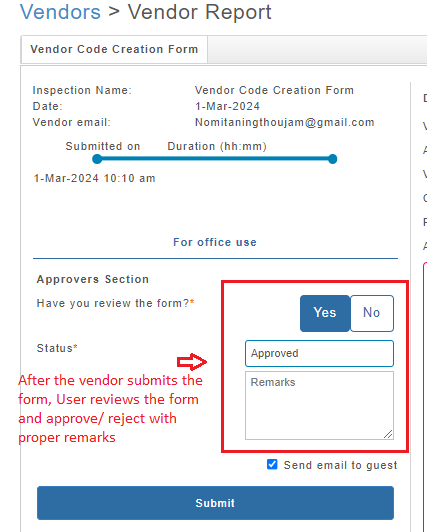
- The user opens the link, reviews the form submitted by the vendor, and either approves or rejects the form.
Part C: To view report after filling the form:
1. Navigate to Inspections -> Vendor -> Vendor Report.
2. Upon reaching the report listing page, simply double-click on the report you wish to view.
Part D: To Approve-Reject the Vendor form
1. Upon accessing the report view page, carefully review the report details.
2. If everything appears to be accurate, proceed to approve the report, adding any necessary remarks, and submit it. The report will then be sent to MDM for final approval.
3. In case there are any details requiring adjustments, reject the report, providing relevant remarks, and submit it. Subsequently, the report will be returned to the vendor for necessary corrections.
