
How to Add employees in Bulk?
For a big organization, adding employees one by one will be exhaustive. So, the second option to add bulk employees is given below –
Step1: Login into www.sanarp.com
Step2: Navigate to Employees -> HRM
Step3: Click on the “Import” button (the cloud icon) just below the create employee button. Refer Image1
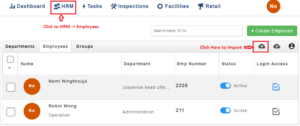 Image1
Step4: It will navigate to the employee upload page. Click on “Download Template” and on clicking a template – “upload_template.csv” will be downloaded. Refer Image2
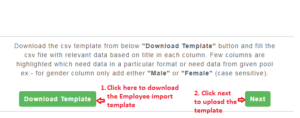 Image2
Step5: Open the template, update the details (mandatory fields include first name, last name, job title, employee number, company, project/ department) and save it.
Clear the extra fields under Educational details, Blood Group, allowances, etc from the template
Step6: Browse and import the document and on successful import, employees will be added/ created. Refer Image3
 Image3
** During import, if there are any duplicate Employee IDs found, Notification message “Import Employee Interrupted, Found Duplicate Employee Numbers” Refer Image4. Ensure all the employees are unique and re-import again.
 Image4
