How to Give Login Access to Employees?
Any employees whose account is created need provide login access. To do, follow the below steps –
Step 1: Login into https://5gpromise.gingerhotels.com/
Step 2: Navigate to HRM – Employees
Step 3: Click on the Employee you want to assign access.
Step 4: Ensure/ Update the details below are updated and saved.
- Mobile Number
- Country Code
- Email Id
Step 5: Click On Add Login button (refer Image1)
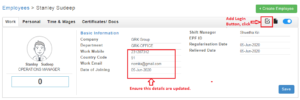 Image1
Step 6: A page will pop-up. Select the role – Admin, Executive Officer & Normal User.
Admin, Executive and Normal user are user roles assigned when an employee login is created. According to the role assigned, user accessibility to the Sanarp application will be restricted.
- Admin – This is the super user role and the user/employee will have access to all the Sanarp modules. They can access both web and mobile applications. Eg. HR, Administration staff are usually assigned this role.
- Executive officer – This is the manager/ supervisor role. The executive role will have access only to a few modules in Sanarp web and mobile application. Eg. HM, Ops Manager are usually assigned this role.
- Normal user – the normal staff who will be doing the ground task. They don’t have Sanarp web access. Eg. Normal staff are usually assigned this role
Step 7: Click on Invite User to send verification email for account activation. Refer Image2.
Step 8: Once Invite is sent, the employee will get an email from Sanarp from Account verification.
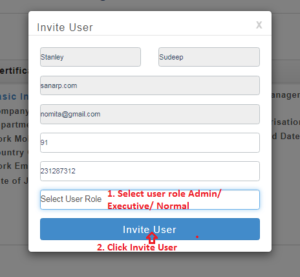 Image2
Note: If you get any notification like – “This email/ phone number is already registered”, Refer Image3 Kindly write an email to [email protected] with the screenshot.
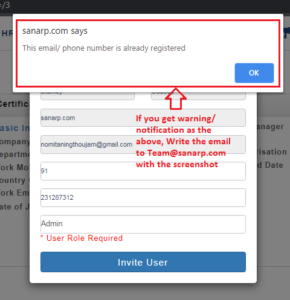
Image3
