How to Add/ Create a Retail Product
Retail Products can be added easily with just a click. Steps to create a retail product-
Step1: Login to https://www.sanarp.com/
Step2: Navigate to Retail Tab
Step3: To start adding new products, click on “Create Product”
Step4: Add the following details –
a. Product Name
b. Product Category – select a product category
- F&B, Buffet, Bento, Meal in a Box
- Mechandise – Gift Shop
- Rent a space (Photoshoot, wedding, etc.)
- Spa Pass
- Tour & Activities
- Meeting/ Conference/ Function Rooms
- Pool, Gym Pass
- Room Packages/ Day Pass
Step5: Product Photo – Upload a product photo (Image size should be less than 500KB). You can now add upto 3 images for the product photo
Step6: Description – The editor is a rich text editor where you can format , add bullet points and link. Refer Image1
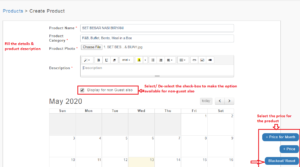 Image1
Step7: Price – The pricing of the product can be added in 3 ways – Refer Image2
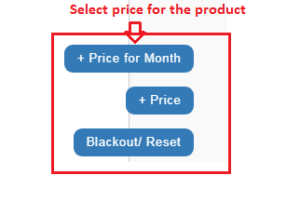 Image2
- + Price for the month – This function allows us to set the price for a month. To set, click on “+ Price for the month” button, a page will pop-up. Set the “Actual Price” , “Offer Price” and “Quantity” (Quantity is the total quantity/ stock available to sell) and click “Save”. You can also set a child price for categories such as – Spa pass, Tour & Activities. Refer Image3
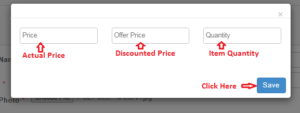 Image3
- + Price – This function allows us to set a price for selective dates. To do, select the Dates from the calendar and on clicking the “+ Price” button, a pop up will appear. Set the “Actual Price” , “Offer Price” and “Quantity” (Quantity is the total quantity/ stock available to sell) and click “Save”. You can also set a child price for categories such as – Spa pass, Tour & Activities. Refer Image4
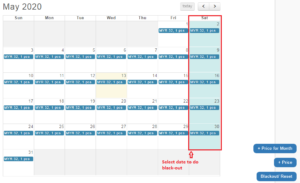 Image4
- Blackout/ Reset – This function allows us to reset/ blackout the previous set prices. To do so, select the Dates from the calendar and on clicking the “Blackout/ Reset” button, a pop-up will appear for confirmation. Click “Yes” to confirm and proceed with reset prices. Refer Image5
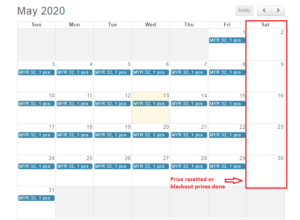 Image5
Step7: Create Product – click on the “Create Product” button to successfully create the product. On successful creation, the product can be seen in the Retail listing page.
