How to Revoke/ Deactivate Employee Access?
Once the Employee/ Staff leave the organization, their access has to be revoked. To de-activate/ revoke access the staff, follow the below steps-
Step1: Login into www.sanarp.com
Step2: Navigate to HRM – Employees
Step3: Once in the Employee listing page, search the employees you want to revoke access.
It can be done in two ways –
A. From the Employee Listing Page
1. On the employee listing page, under the “Status” column, deactivate the status by clicking on the “active” button. (Refer Image1)
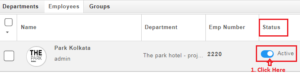 Image1
2. Select the “Inactive” button and click on “Update Status”. (Refer Image2)
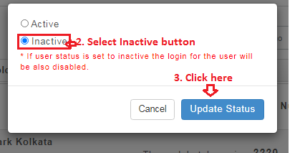 Image2
3. On successful update, the employee access will be revoked.
B. From the Employee Profile Page
1. Once in the Employee Listing page, search the employee and open the employee profile.
2. Once you are in the employee profile page, Click on the “Add Login” page. (Refer Image3)
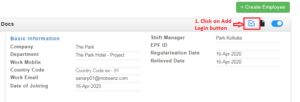 Image3
3. A pop-up page will appear.
4. Under Change Role, select the “Revoke Login Access” and click update button. (Refer Image4)
5. On successful update, the employee access will be revoked.
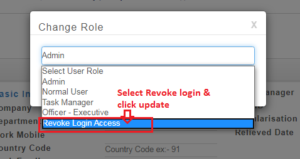 Image4
