How to add Tax for your products – F&B menus
Step1: Login to https://www.sanarp.com/
Step2: Navigate to Facilities -> F&B
Step3: Select the Restaurant you want to add the Tax and Go to edit mode by clicking the “Edit” icon.
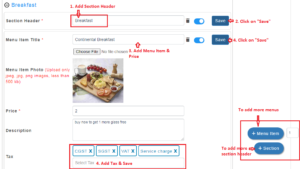
Step4: For the menu added, add the Tax by clicking at the “Select Tax” box. It will auto-suggest, select the tax to add.
fyi – Tax should be created first. To create tax – https://help.sanarp.com/?article=facilities-fb-create-tax
Step5: Click on “Save” to successfully save the Tax added.
Step6: To delete the Tax added, click on the “x” sign and remove the tax.
Step7: Click on “Save” to successfully save the Tax removed.
![]() How to add Tax for your Retail Products
How to add Tax for your Retail Products
 How to add Tax for your Retail Products
Step1: Login to https://www.sanarp.com/
Step2: Navigate to Retail -> Active Products
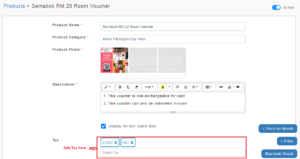
Step3: Open the Product for which you want to add the Tax .
Step4: Under Tax Label, add the Tax by clicking at the “Select Tax” box. It will auto-suggest, select the tax to add.
fyi – Tax should be created first. To create tax – https://help.sanarp.com/?article=facilities-fb-create-tax
Step5: Click on “Save” to successfully save the Tax added.
Step6: To delete the Tax added, click on the “x” sign and remove the tax.
Step7: Click on “Save” to successfully save the Tax removed.