How to Create a Restaurant and F&B Menu Item?
Restaurants can be added easily in Sanarp. Steps to create an F&B menu items-
Step1: Login to https://www.sanarp.com/
Step2: Navigate to Facilities -> F & B Items
Step3: Click on “+Add Restaurant” button
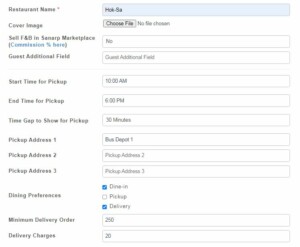
a. Restaurant Name *
b. Cover Image
c. Sell F&B in Sanarp Marketplace (Commission % here) – Select “No”
d. Guest Additional Field
e. Start Time for Pickup – Restaurant opening time
f. End Time for Pickup – Restaurant opening time
g. Time Gap to Show for Pickup – Intervals
h. Pickup Address 1/ 2/ 3 – You can define multi F&B Pick-up address apart from the hotel address. For eg if they want the food pickup is available at Bus stand, then you can put – Bus Terminal 1
i. Dining Preferences – Select Dine-in, Pickup or Delivery according to the hotel preferences. For delivery option selected, the hotel can pre-define the Minimum Delivery Order and Delivery Charges.
Step3: Add Section Header (For Eg. Breakfast Timing 7.30 am to 9.30 am) and click on the “Save” button. On successfully saving, the Menu Section will be automatically added.
Step4: Add Menu items (For Eg. American Breakfast)
- Add Menu Item title
- Add Menu Item Photo (Optional and add image size < 500 MB)
- Price & Unit
- Description
- Tax (added tax will be auto suggested and should be created before adding) To create tax refer – https://help.sanarp.com/?article=facilities-fb-create-tax
Step5: Click on the “Save” button. On successfully saving, the menu items will be displayed in the Sanarp Guest Homepage.
Step6: To add more items, Click on “+ Menu Item”. You can also increment the + Menu Item count by entering the number you want to add.
Step7: To add the next section header, Click on “+ Section” and then click “Save”.
Step8: Once saved, the Section header and the Menu items will be added successfully.
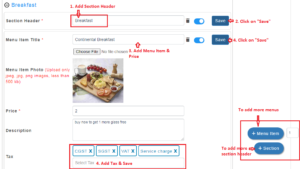 Image1
