Welcome to Sanarp. Please refer the below sign up documents for Go-Live.
Phase 1 milestone stones to achieve:
Milestone 1 (day 1): Sign up to Sanarp. Verify and confirm the login.
Milestone 2 (day 2- day 4): Add data for the specific organization.
Milestone 3 (day 5): Online Demo & Training along with knowledge document
Steps for Go-Live:
Step1: To sign up, select the form for sign up based on the organization type (Hotel/ Restaurant),
Hotel – Mybha – Sanarp Sign-up Form – https://sanarp.com/Inspections/guest/NjAx
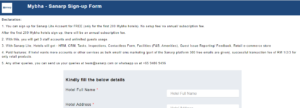
Restaurant – Sanarp Sign-up Form – https://sanarp.com/Inspections/guest/NjQ0
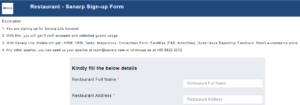
Step2: Sanarp Team reviews the form submitted and completes the sign up process. Sanarp Team also shares
a. Login credentials – Email Id and Password to the customer to login
b. Hotel/ Restaurant unique link and QR code.

Step3: Once credentials are received, customer confirms the login is working.
Step4: Once login to Sanarp, customer navigates to Retail and accept the Sanarp agreement.
Step5: With this, the Go-Live is complete. The next phase is to add the data
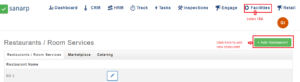
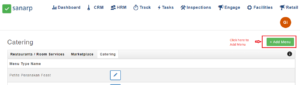
Step6: Add F&B. To add F&B Menu, Kindly email the F&B Menu to [email protected]. Refer the details to send in this file –
To add new restaurant
To add new catering:
Help file to add F&B Menu: https://help.sanarp.com/?article=facilities-fb
Step7: Add Retail Product. Navigate the Retail Menu and accept the agreement for the first time user to add the products
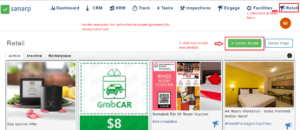
To add Retail product, Kindly email the restaurant/ hotel promotions and product to [email protected]. Refer the details to send in this file – https://docs.google.com/spreadsheets/d/1nwhw7bpJp3ED8BwXdHy8byuwUaydBQQKRaSVpMz64Ak/edit#gid=0
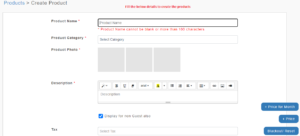
Help file to add Retail Product: https://help.sanarp.com/?article=retail-create-retail-product
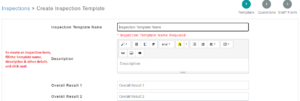
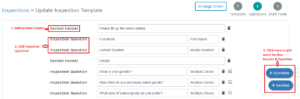
Step8: To add the forms, for e.g. Guest Registration card, Travel Declaration, Guest feedback form, Housekeeping Checklist, etc, kindly share the paper based form at [email protected]
Help file to create the Forms – https://help.sanarp.com/?article=inspection-create-inspection
Create Inspection Template/ form:
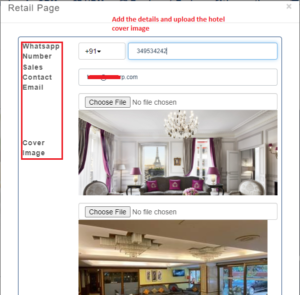
Step9: Add your hotel/ restaurant image as cover image. To do, Navigate to Retail and click on “Retail Page” Button.
A. Navigate to Retail Menu page
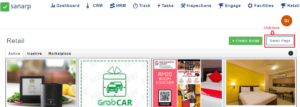
B. Update the Retail Page