
How to create a Task in Mobile Application?
This document will walk-through how to create a task in Sanarp Mobile Application. To create a task, follow the steps below-
Step1: Login to Sanarp Mobile Application and click on the Menu (three lines on the top L.H.S corner) (Refer Image1)
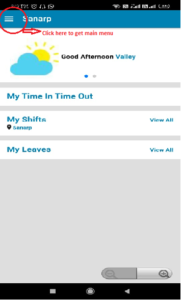 Image1
Step2: From the menu, navigate on the Task (Refer Image2)
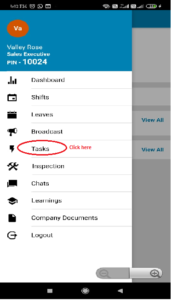 Image2
Step3: Once in task listing page, Click on the red “+” sign on the R.H.S lower corner to start creating task
Step4: Select a Tag from the menu (Refer Image3) and tap on the Save button.
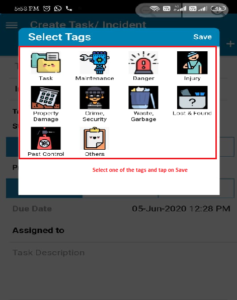
Image3
Step5: Add the details. On the Add Team field – type employee or group name and tap on Apply to select the employee/group name. (Refer Image4)
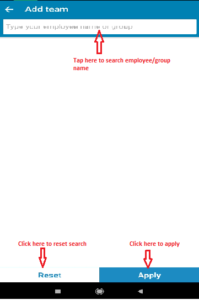 Image4
Step6: Enter Task/Incident Name and Location.
Step7: Select Status of the task – Open / In Progress/ Closed.
Step8: Select Priority of the task – Low/ Medium/ High
Step9: Due Date – select due date to complete the task.
Step10: Assigned to – Enter the employee’s/group name to select the assigned to for the task.
Step11: Tap on the Camera icon to take pictures (if needed).
Step12: Click on Create Task to complete creation of the task. (Refer Image5)
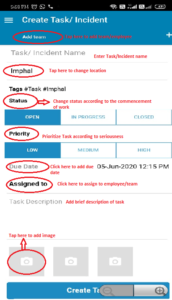 Image5
